Using Digital Microscopes with a Chromebook

Using Digital Microscopes with a Chromebook

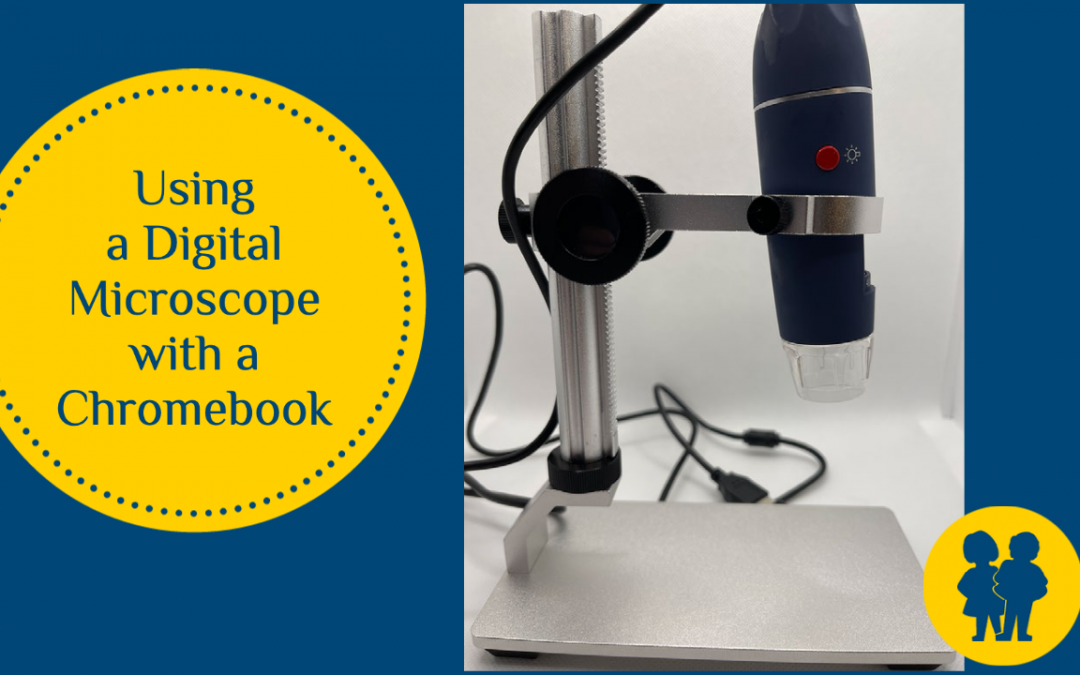
If you’ve signed out the set of digital microscopes from the IMC, or if you’ve purchased your own, here is a brief video (it’s less than 4 minutes) that you can use to learn how to use them with your Chromebook.

This video is also a good way to teach students how to use these devices with their Chromebooks.
Bitmoji Classrooms

Bitmoji Classrooms

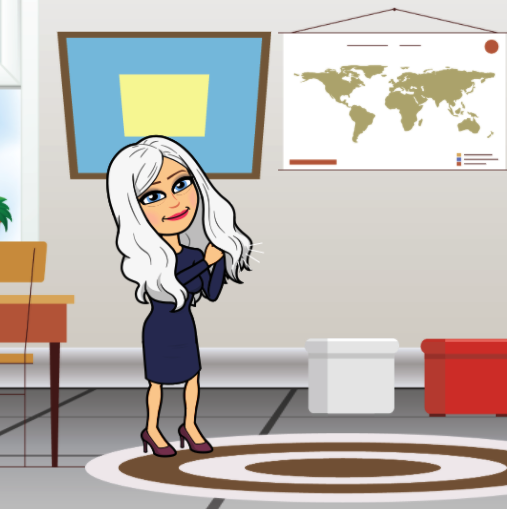
The past [almost] 12 months with the Covid quarantine have created some challenges for educators, but they have also spurred some massive creativity amongst teachers. One of the emerging trends for instruction has been the creation of Bitmoji Classrooms. 

In a nutshell, a Bitmoji classroom is a Google Slide, decorated to look like a classroom (some teachers have even made their slide look like their REAL classroom), with interactivity built in.  If you teach in div 1 especially, a Bitmoji classroom can be an effective way to guide students through some of the daily events by using the visual nature. (For example your class calendar  – embed a calendar right onto the slide with this important information contained in it!)

The slide deck to the right contains 20 classroom images that you may take and use to create your own Bitmoji Classroom. Additionally, there are almost 350 extra furnishings and extra accessories contained in the slides at the end of the classrooms to help you get started in decorating your own Bitmoji Classroom.

Beyond the images contained within this slide deck, you may wish to use the Google Search that is built right into slides to find other images to bring into your little virtual classroom. When you use the image search inside of slides, everything that comes up is marked for reuse, meaning you need not worry about copyright! The images have already been filtered for you! The video below may act as a guide if you are uncertain where to start!

Combatting Online Learning Fatigue

Combatting Online Learning Fatigue

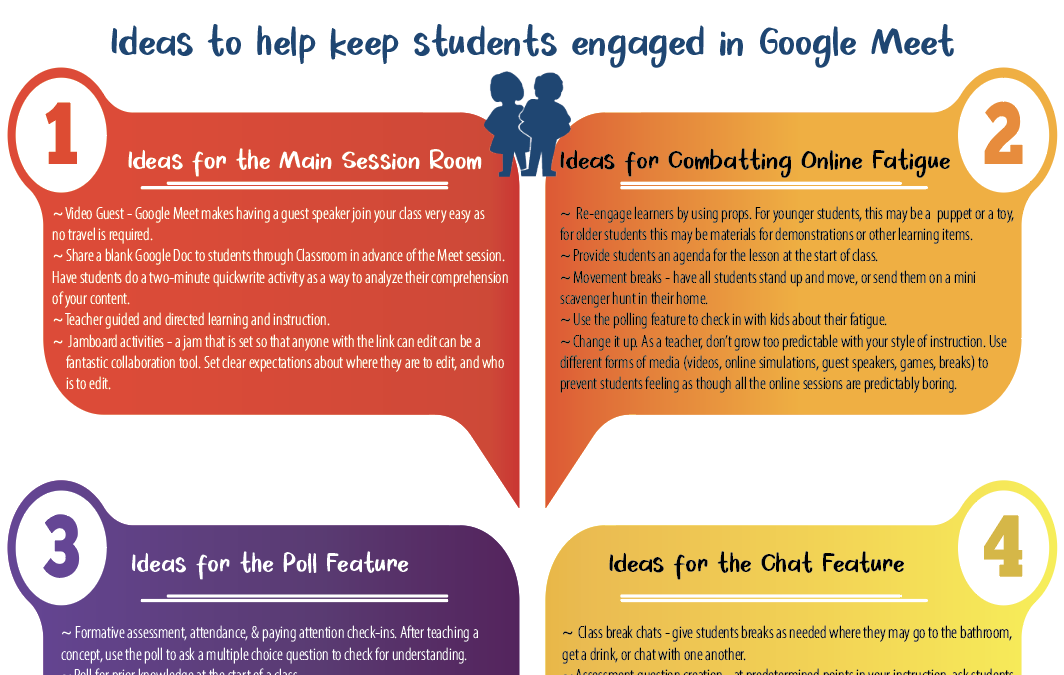
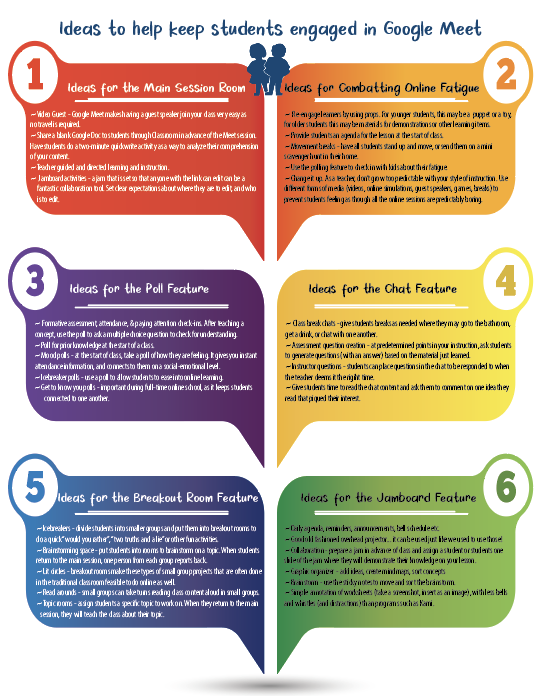
Keeping students engaged in online learning can be challenging. The Google Meet Fatigue is real, and teachers experience it too. Online fatigue is real. Distracted students are real. Teacher frustration is real. So what do we do?!?!

Thankfully there are a few ideas and techniques teachers can bring to bear to try to spice it up and keep both ourselves and our students engaged.

The infographic presented here was built from a variety of resources, including the book Engaging Learners Through Zoom.

Click the image below to access the .pdf of ideas!!

Digital Microscopes – A Comparison

Digital Microscopes – A Comparison

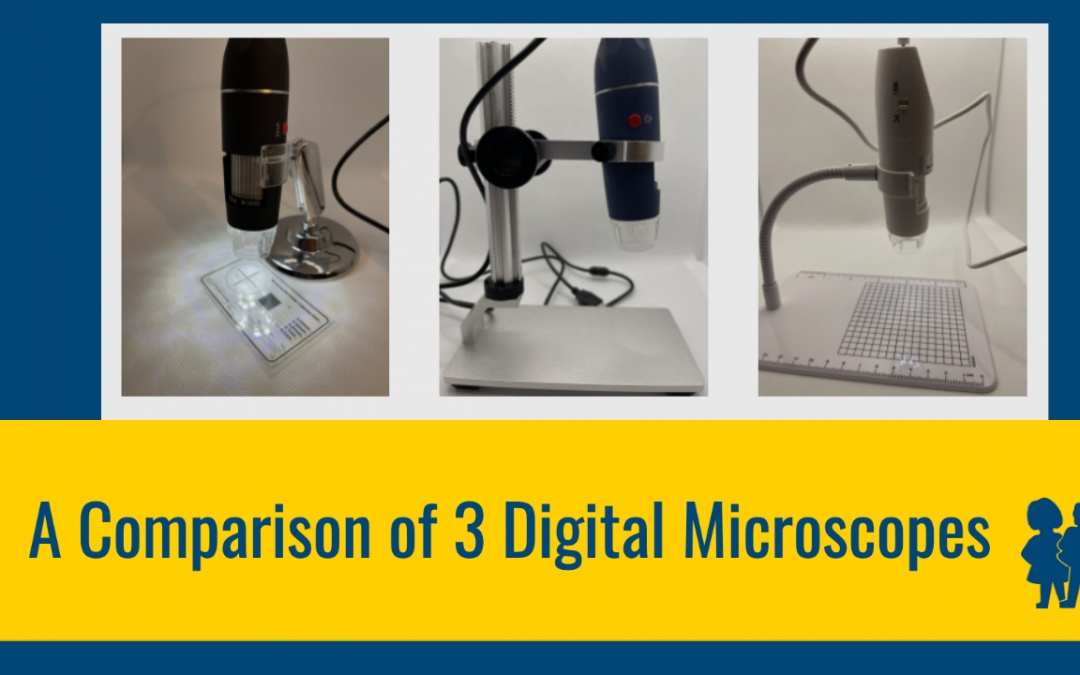
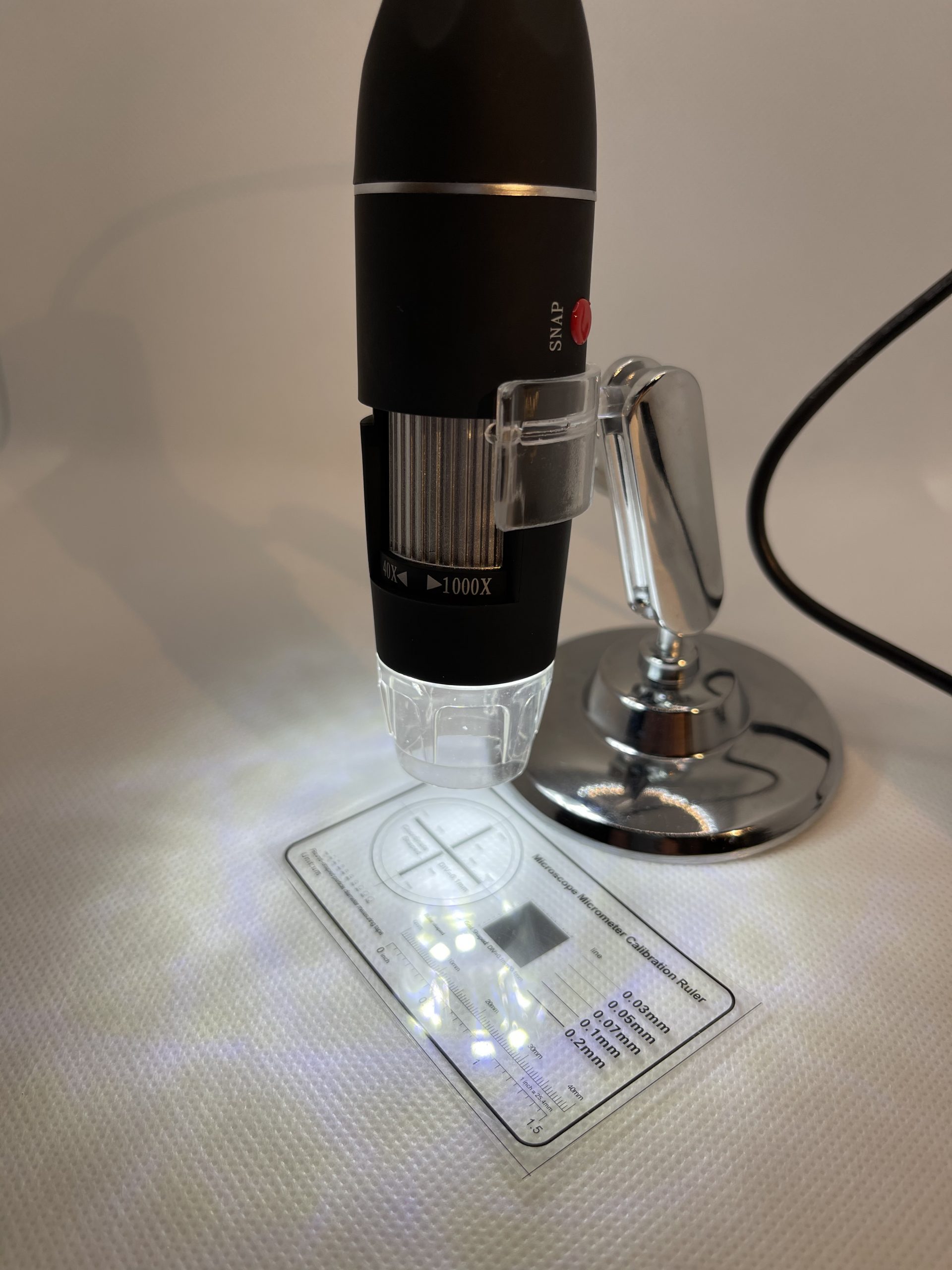
Jiusion Digital Microscope

$30.99 at amazon.ca

Pros

Small, Easy to store, takes very good pictures. Adjust lights on the cord of the microscope. Takes very good photos.

Cons

The stand is not very high, nor very steady. Needs to be positioned higher (on a book for instance) in order to view and capture the images of the matter being inspected. Must hang on to microscope while taking photo.

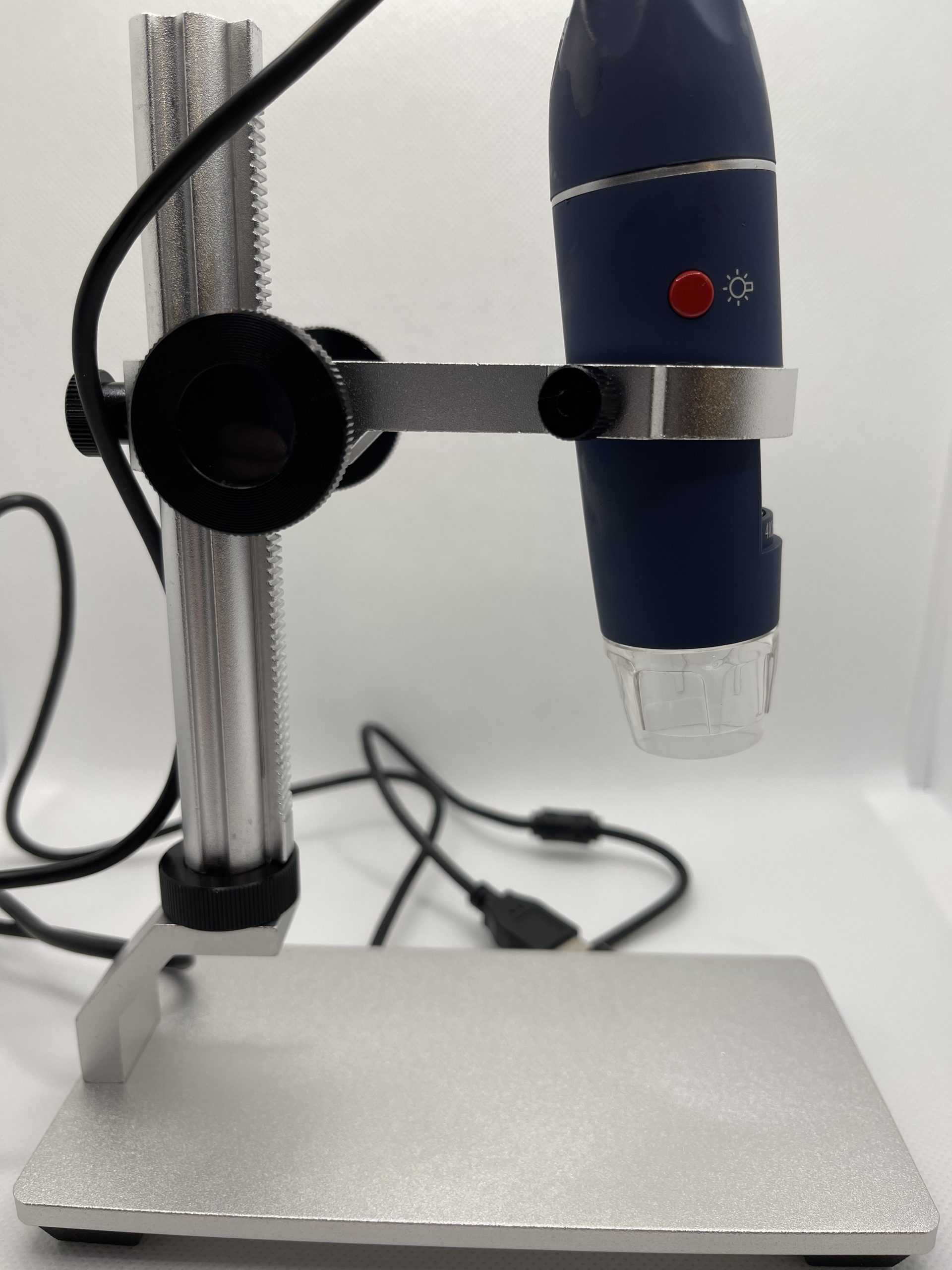
Jiusion Digital Microscope & Stand

$39.99 at amazon.ca

Pros

Small, takes very good pictures. Stand holds the microscope steady for observation and capturing. Stand adjusts up and down with a knob, and maintains the straight angle on the matter being inspected.

Cons

The stand makes these microscopes take up additional storage space. The ring that holds the microscope in the stand makes focusing a tiny bit awkward.

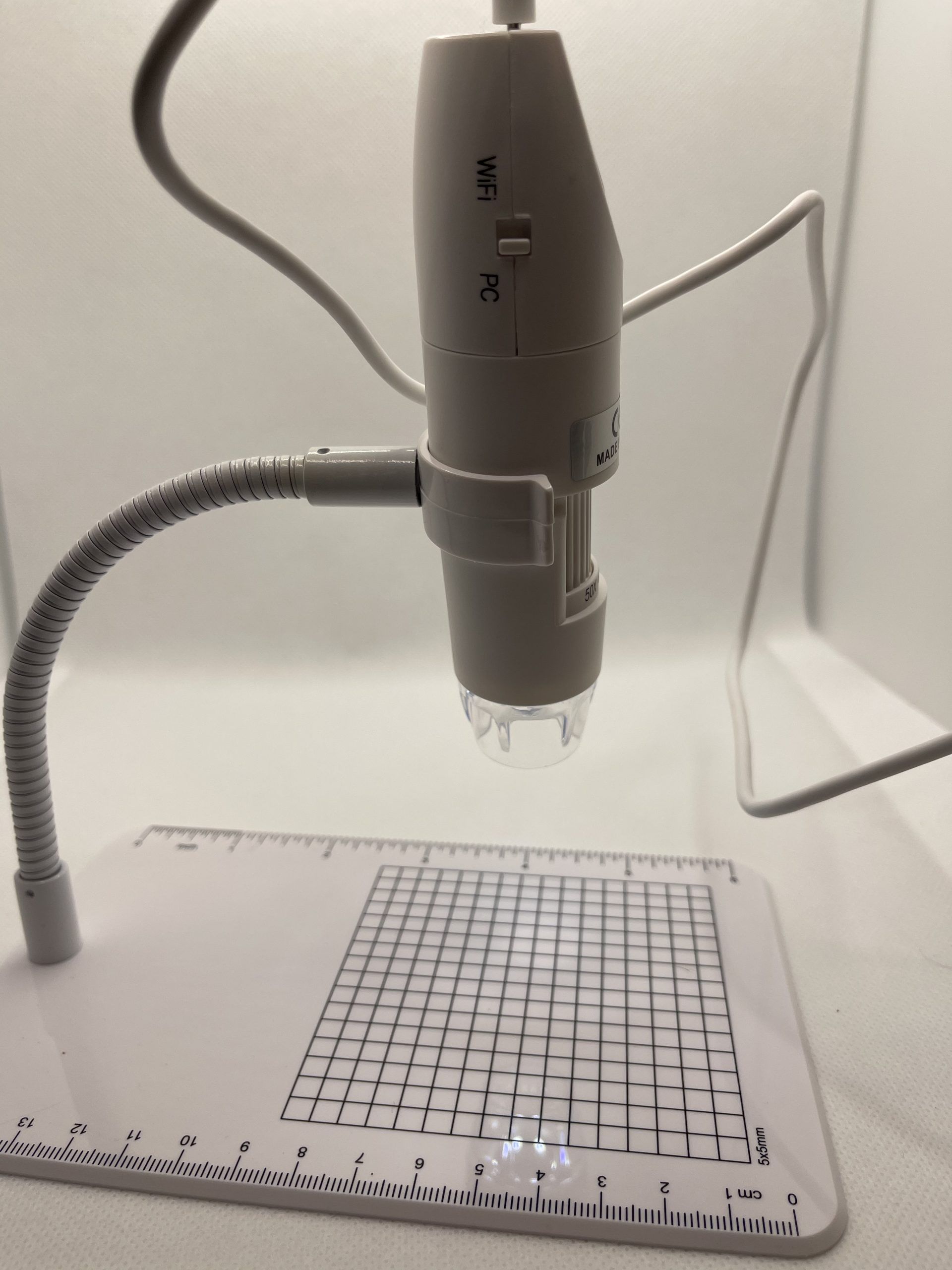
Inskam Digital Microscope & Stand

$47.99 at amazon.ca

Pros

Small, takes very good pictures. Stand holds the microscope still for observation and capturing. Measurement built onto microscope stand where it cannot be lost.

Cons

The white stand reflects the lights from the microscope back into the photo. Grid is measured in 5mm by 5mm squares, with no option to change it to micrometers.

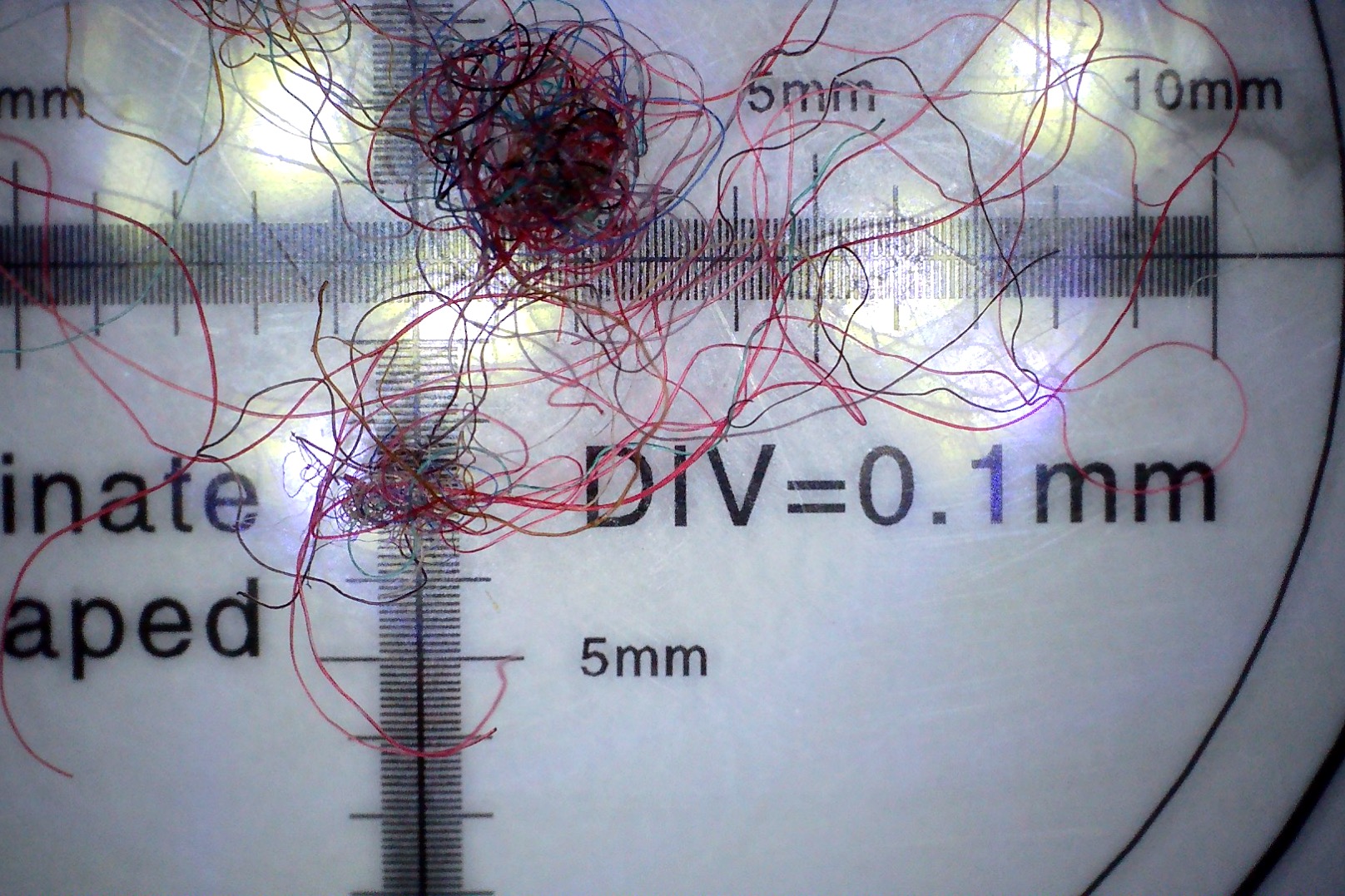
Sample Image

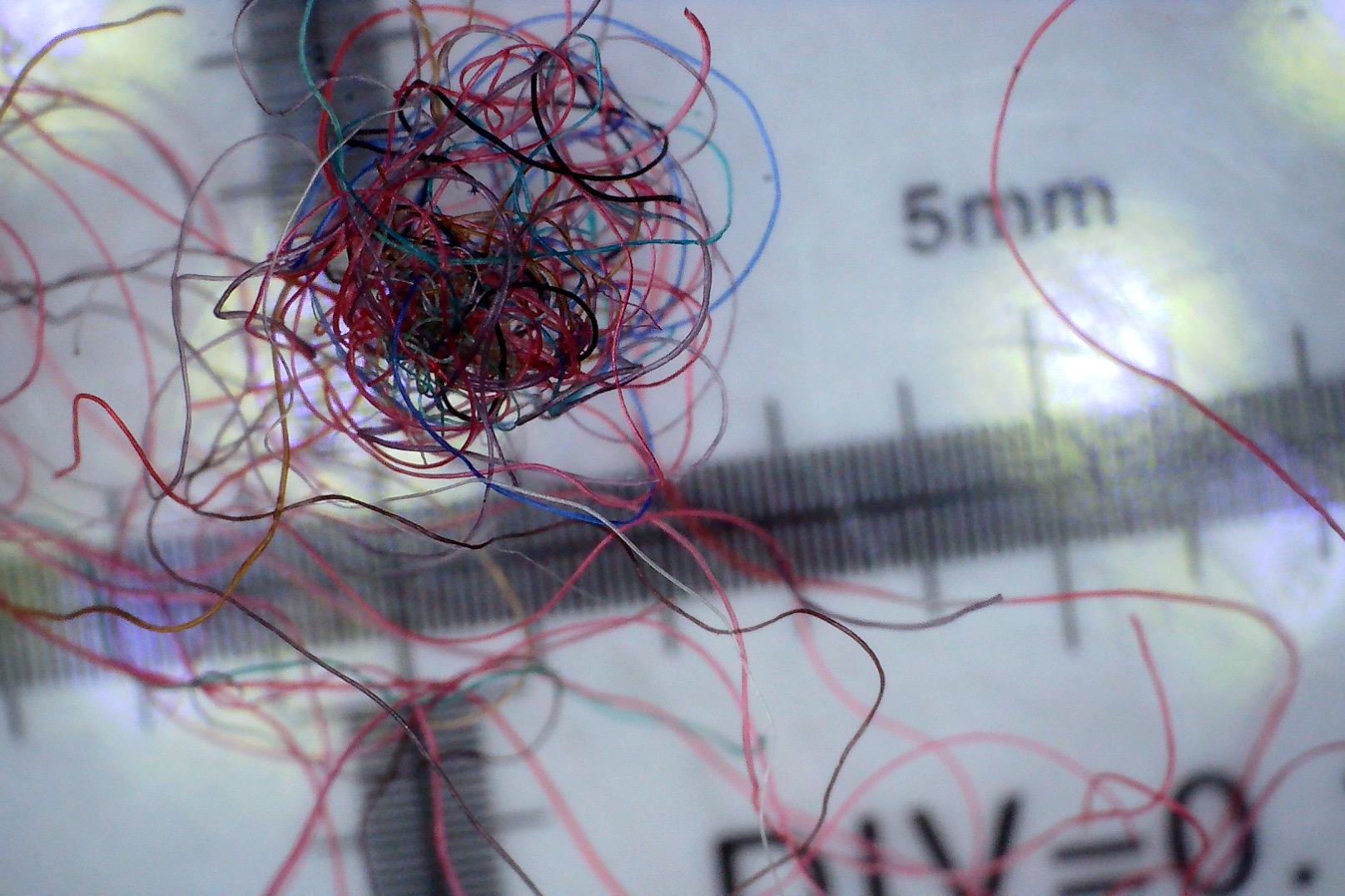
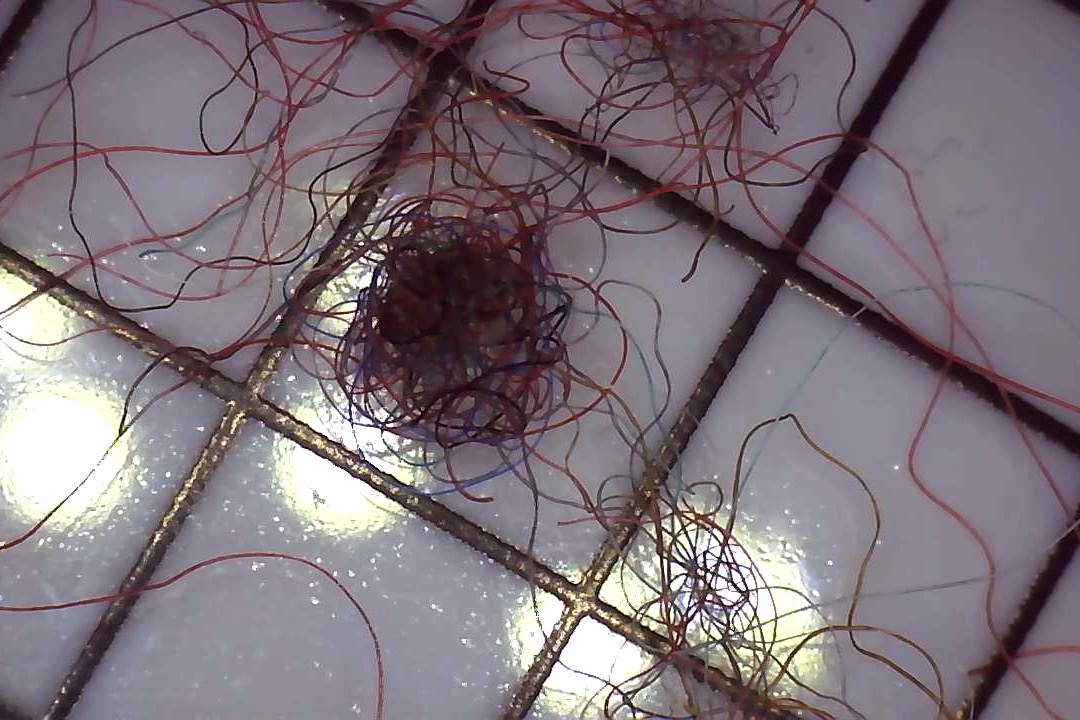
The same sweater fibre has been photographed under each microscope, for the sake of comparison. The two Jiusion microscopes (left and centre) definitely take a better quality photo. 

Conclusion

The IMC will have a kit containing the middle microscope with the steadiest stand. These microscopes are easy to use with chromebooks, so science teachers interested in booking a class set of digital microscopes will have that option. The two jiusion microscopes are very similar in their images, however, the one with the flimsy stand is likely to frustrate some students.

If schools are interested in purchasing digital microscopes and wish to test the three demonstration models out, contact Michelle and she will send you the three to test out and inspect.

Putting Work Online

Putting Work Online

There’s an old saying: “There is more than one way to skin a cat”.  This is true of putting work online for students.  We are going to look at pen-and-paper type work in this post.

First, there is the .pdf way. A worksheet can be scanned on your school’s copier to .pdf and loaded to Google Drive. Staff and students have access to Kami for annotating on .pdf files. If you choose “Create Kami Assignment” on your classwork tab in Google Classroom, that should force the assignment to open in Kami for all students. If you’re not familiar with Kami, I did a 15 minute crash course blog entry recently.

A screenshot set as the background in a Google Slide is another way to make a paper-and-pen assignment accessible for students to respond to. (Taking a screenshot on a chromebook is easy) and once you’ve got that screenshot, you can set it as a background image and students can apply textboxes over it as needed.